Updating Stock
When you are ready to restock a chemical or supply for a specific pool, you can do it directly from the Shopping List without having to navigate to your inventory separately.
- Desktop
- Mobile
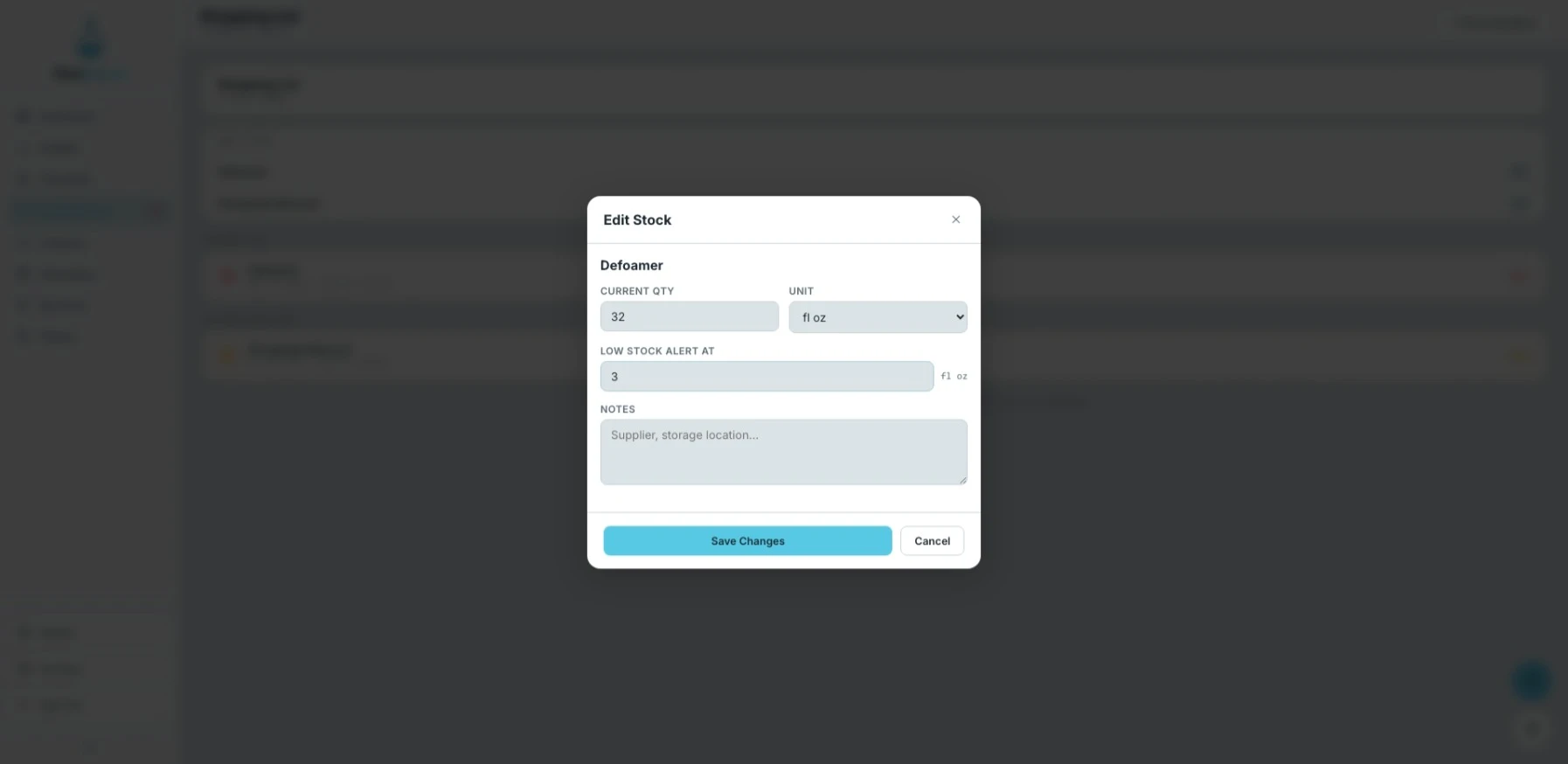
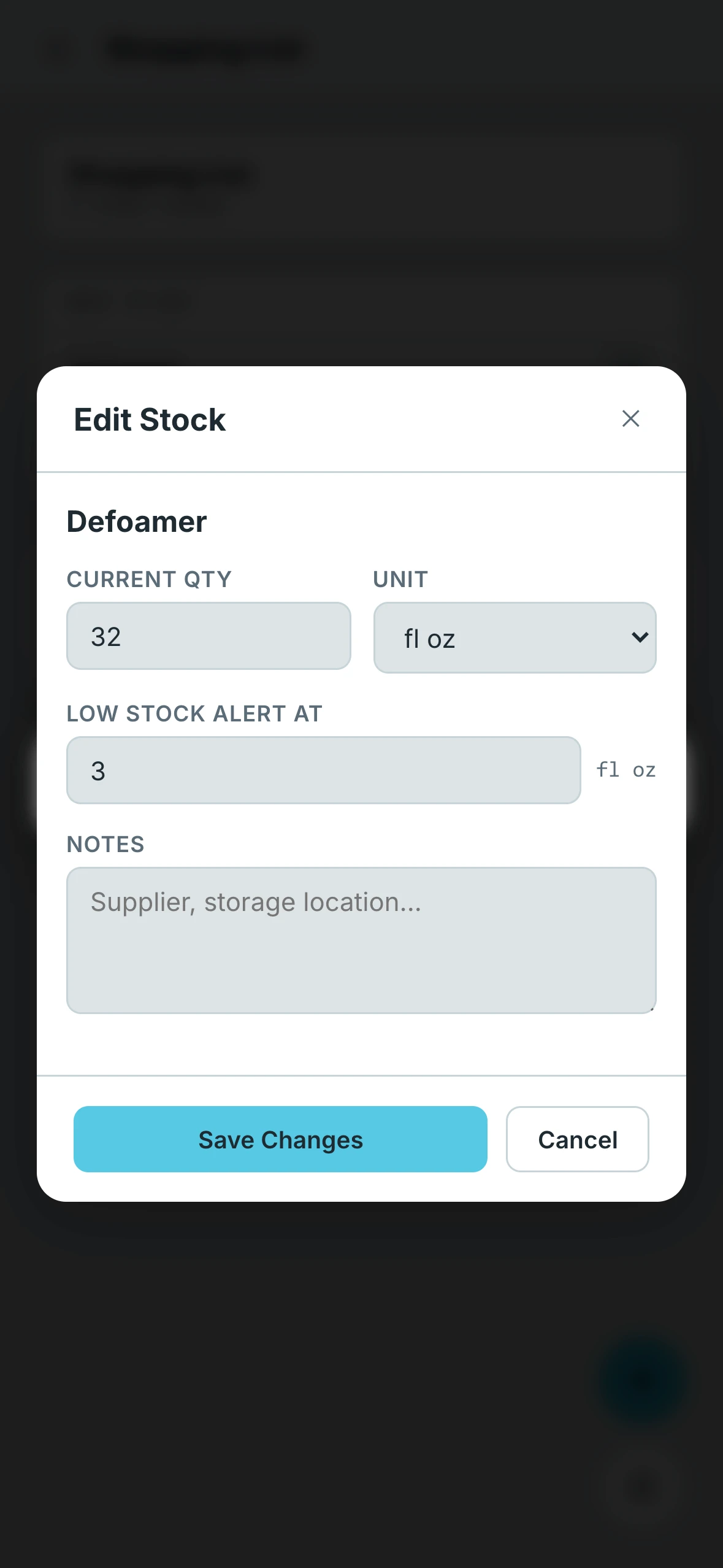
How to Restock an Item
Navigate to the Pool Breakdown section at the bottom of the Shopping List. Find the pool you are restocking for and tap the chemical or supply you want to update. A panel will open allowing you to edit the stock details for that specific inventory item.
What You Can Update
Once the panel is open, you have a few fields to work with:
Quantity — Enter the amount you are adding back into stock. You can also select the unit that matches what you purchased, so the quantity is recorded accurately.
Low Stock Alert — Set or adjust the threshold at which FlowBeacon should start alerting you that this item is running low. This helps make sure the item shows up on your Shopping List before you completely run out.
Notes — An optional field for any details or specifications you want to attach to the restock entry. Useful for things like brand preferences, supplier notes, or instructions for a specific pool.
After Restocking
Once you save the update, the item is removed from the Shopping List automatically. If every item for a pool has been restocked, that pool will no longer appear in the Pool Breakdown section.