Understanding My Pools
My Pools is where all of your pools and properties live. From this screen you can browse, search, sort, and manage every body of water you're tracking in FlowBeacon.
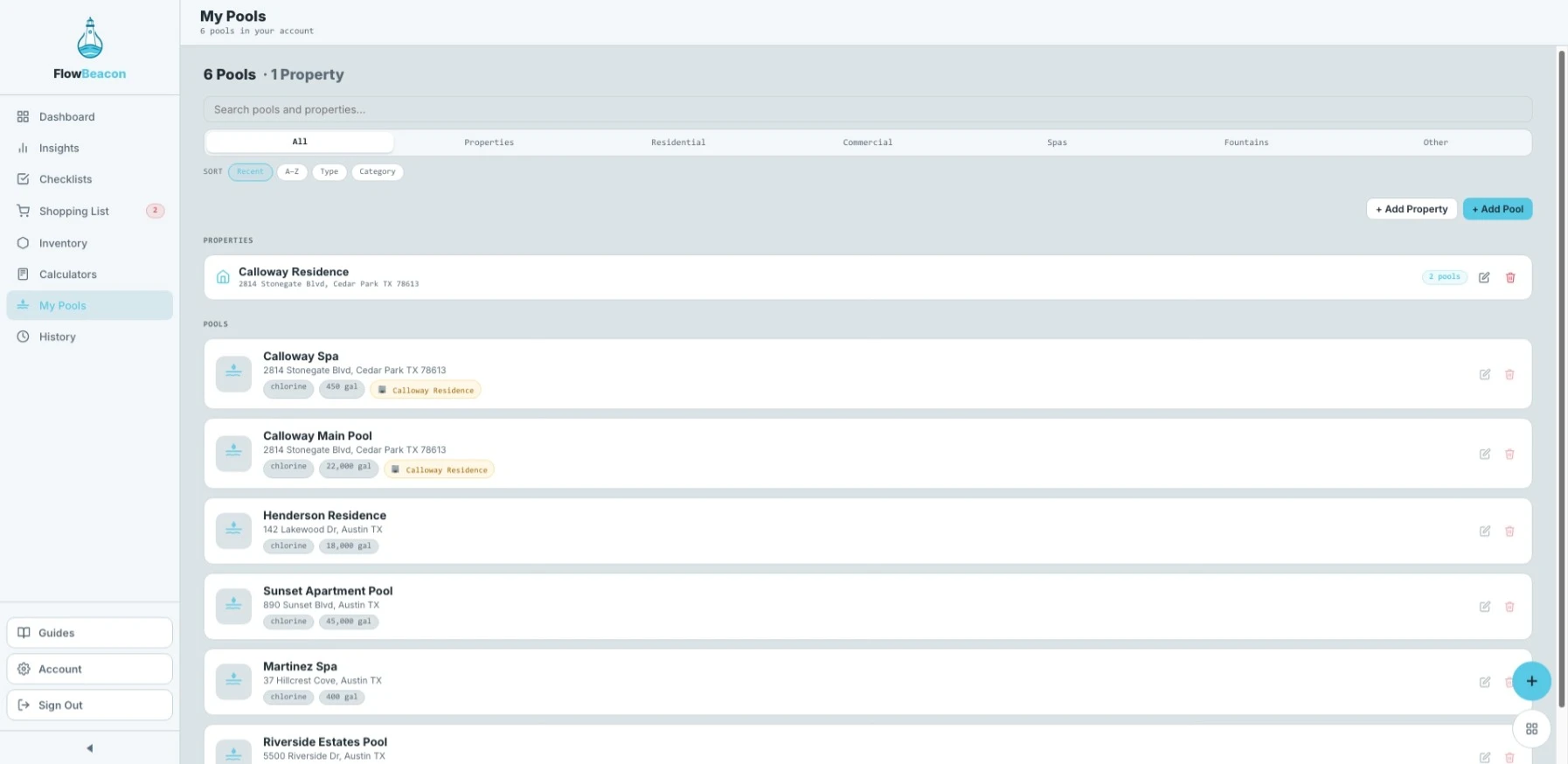
- Desktop
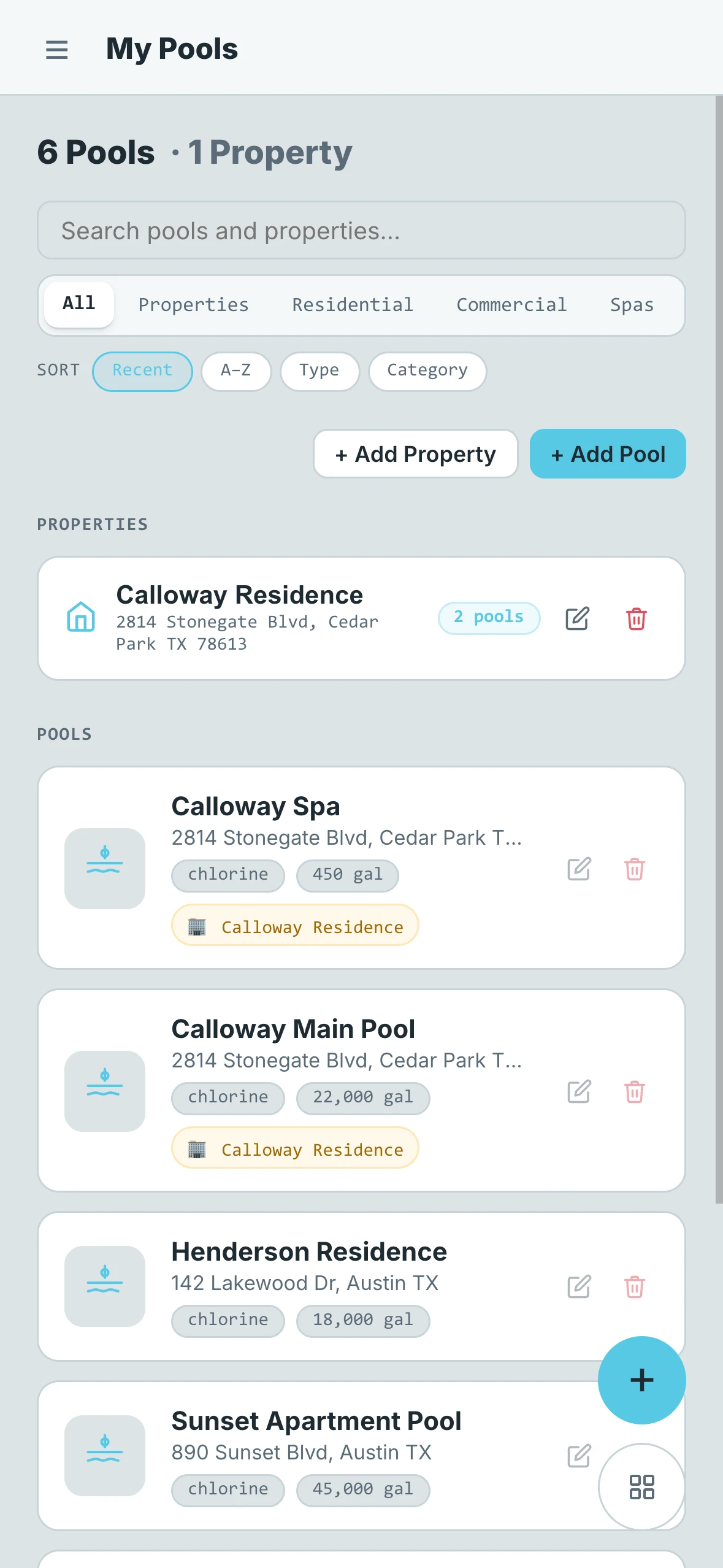
- Mobile
Overview
The top of the screen shows your total pool count and total property count at a glance.
Searching and Filtering
Use the text search bar to quickly find a specific pool or property by name. Below the search bar, a row of category filters lets you narrow the list further:
- All — Show everything
- Properties — Show properties only
- Residential — Residential pools
- Commercial — Commercial pools
- Spas — Spas only
- Fountains — Fountains only
- Other — Any other type
Sorting
Tap the sort option to order the list by:
- Most Recently Added
- Alphabetical
- Type
- Category
Adding Pools and Properties
From this screen you can add a new property or an individual pool directly — no need to navigate elsewhere.
How the List Is Organized
Properties are listed first, followed by individual pools. Each entry shows different information depending on its type.
Properties
Each property card displays:
- Photo — A preview image of the property if one has been uploaded, or a placeholder icon if not
- Name
- Address
- Number of pools linked to the property
- Edit and Delete buttons
Pools
Each pool card displays:
- Photo — A preview image of the pool if one has been taken, or a placeholder icon if not
- Name
- Address — If one has been added
- Type — Chlorine or salt
- Volume
- Edit and Delete buttons
- Linked property — If the pool is associated with a property, that connection is shown on the card