Adding a Pool
When adding a pool in FlowBeacon, you can set it up as a standalone pool or link it to an existing property. The form is the same either way — the slider below shows the difference between the two.
Drag the slider to compare a standalone pool and one linked to a property.
- Desktop
- Mobile
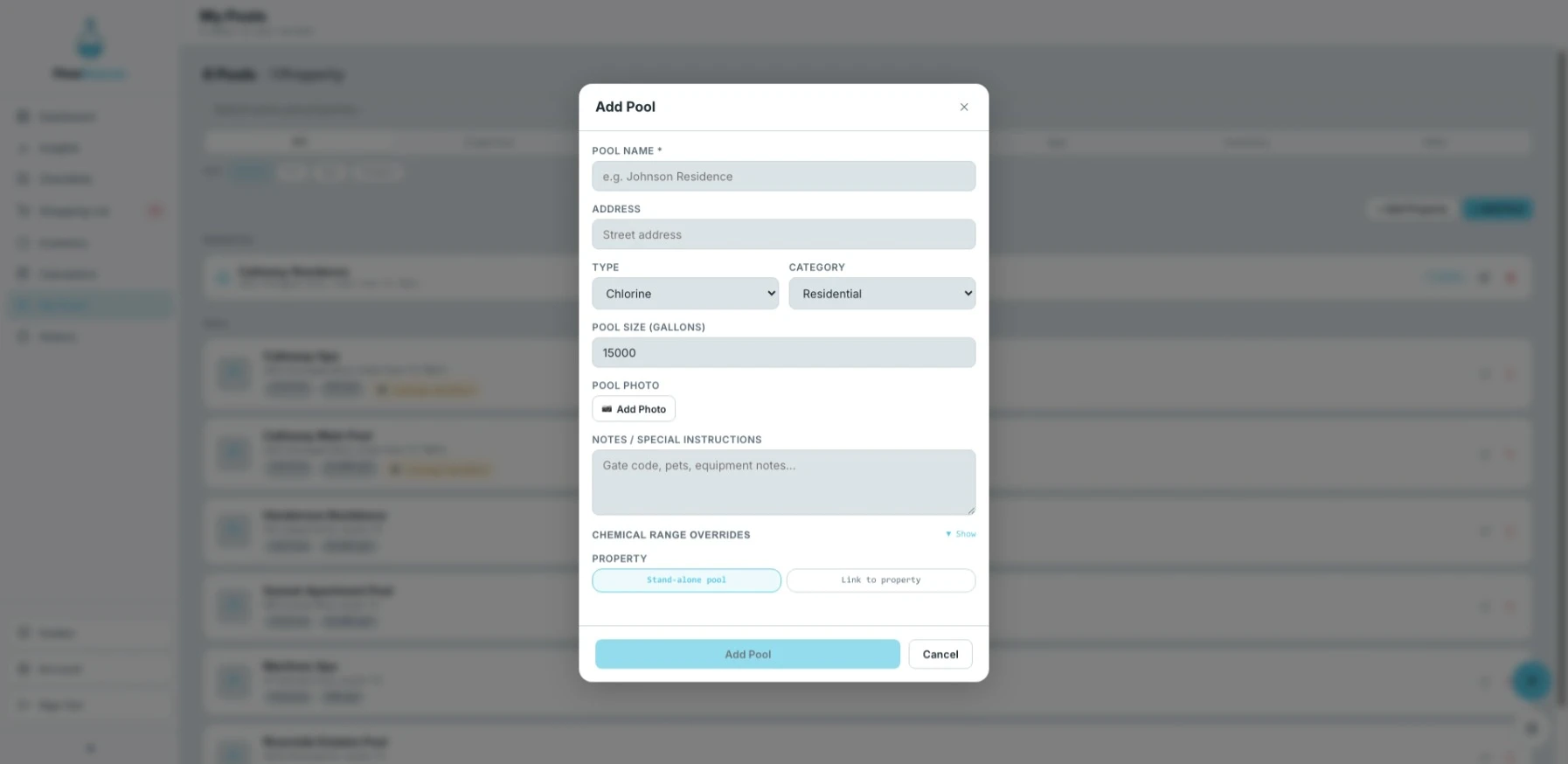
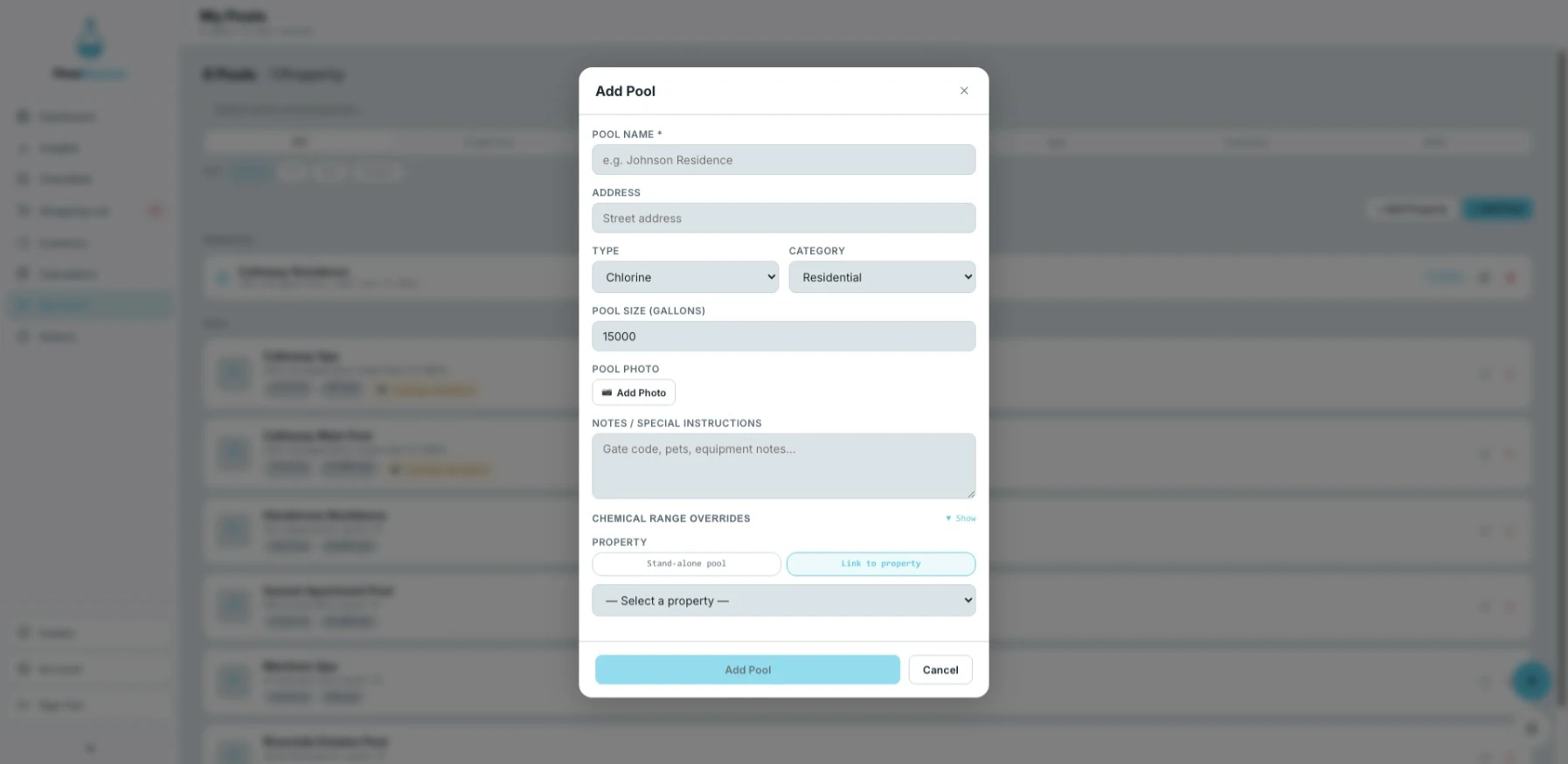
← FormResult →
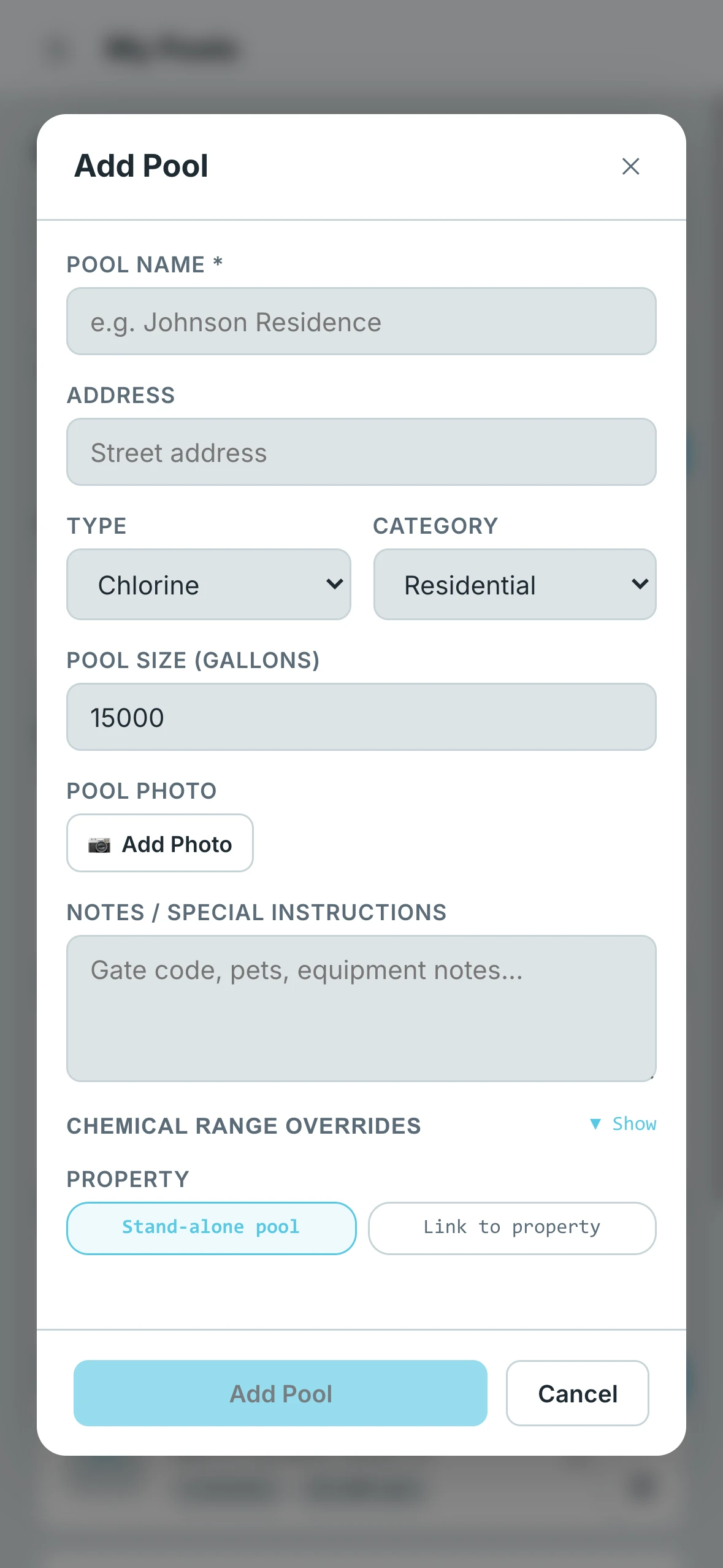
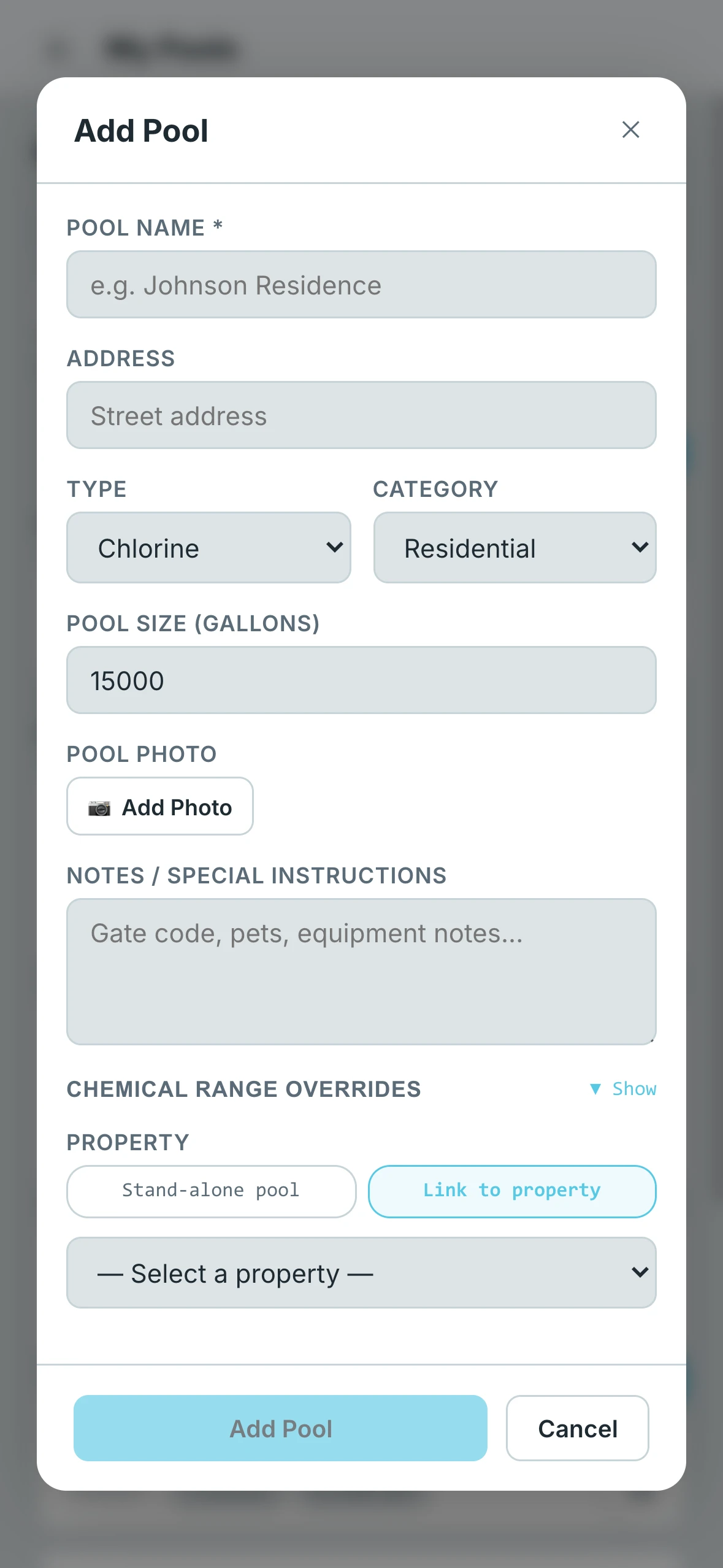
← FormResult →
Fields
- Pool Name — The name of the pool (required)
- Address — The street address of the pool (optional)
- Type — Chlorine or salt
- Category — Residential, commercial, spa, fountain, or other
- Volume — The total volume of the pool
- Photo (optional) — The image that appears on the pool card in My Pools
- Notes (optional) — Any notes about the pool. Notes added here are displayed directly on the dashboard when this pool is selected.
Pool-Specific Chemistry Overrides
This form is also where you can set chemistry overrides specific to this pool. Any overrides entered here take priority over your global account settings and the standard industry ranges, giving you full control over the ideal targets for this individual pool.
Linking to a Property
If you have properties set up, you can link the pool to one during setup. Linked pools appear grouped under their property in the My Pools list.