Understanding the Dashboard
The Dashboard is your home base in FlowBeacon. Every time you open the app, you land here and get a clear snapshot of your pool's current condition — no digging through menus required.
- Desktop
- Mobile
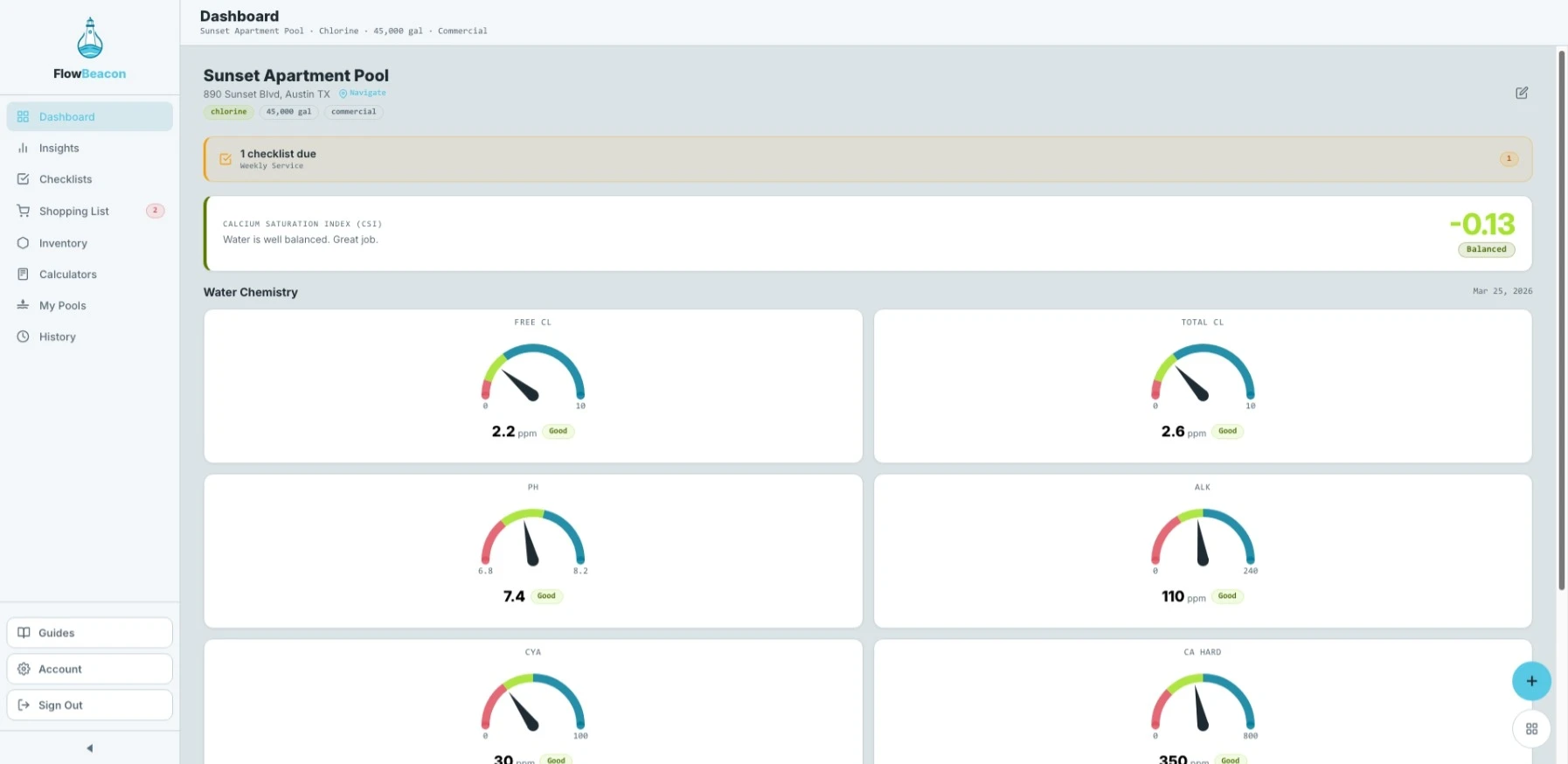
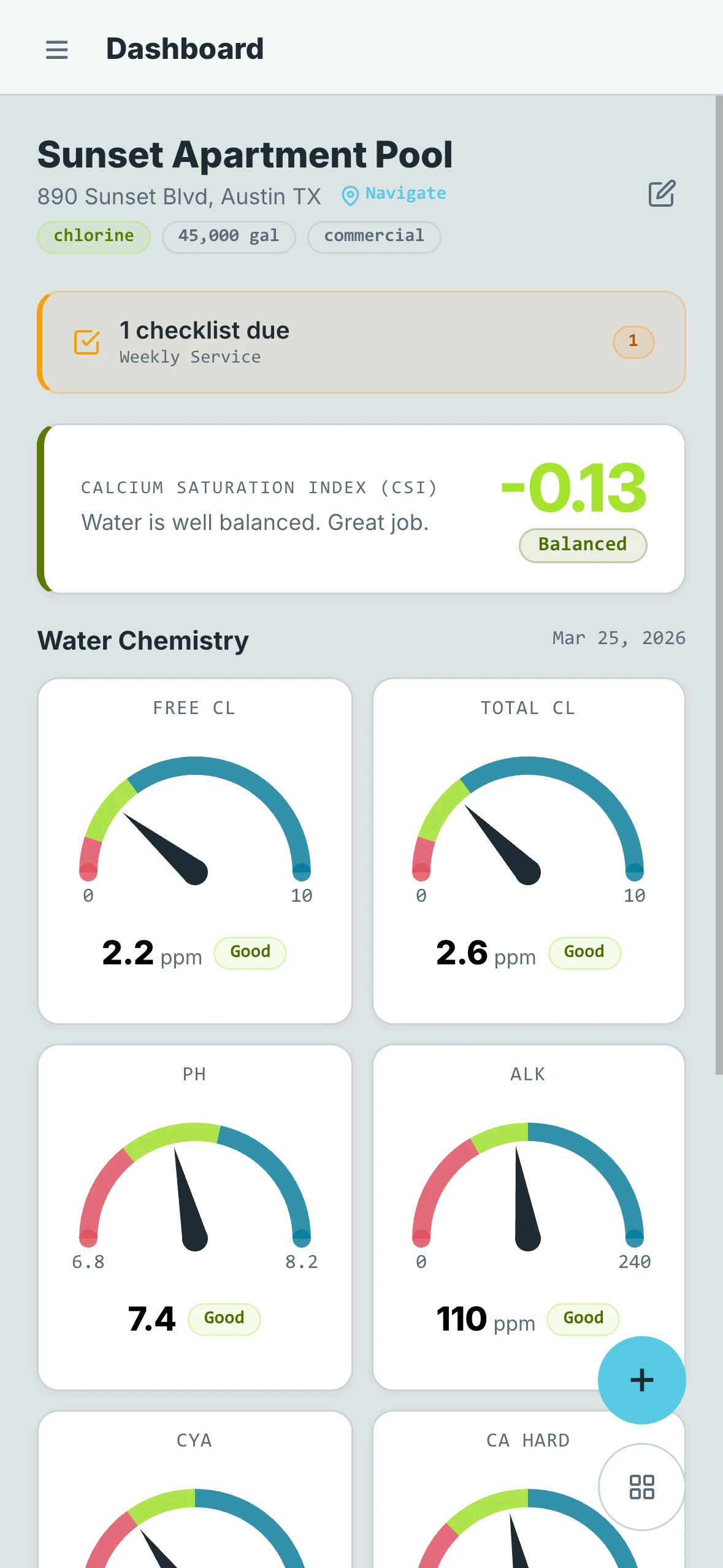
Your Pool Details
At the top of the Dashboard you'll see the name of your pool. If you've saved an address in pool settings, it will appear just below the name along with a Navigate button. Tapping Navigate opens your phone's default GPS app and starts directions straight to the pool — perfect for service pros managing multiple locations. On desktop, it defaults to Google Maps. If no address has been entered, the Navigate button will not appear.
To the right of the address you'll find an Edit button. Tapping it takes you to that pool's settings so you can update any details at any time.
Below the name and address, three tags give you a quick read on the pool:
- Pool Type — Chlorine or salt water
- Volume — The total water volume of the pool
- Category — Residential, commercial, spa, fountain, or other
Checklists
If you have any checklists assigned to a pool, the Dashboard will also display a reminder letting you know there are tasks due. This makes it easy to stay on top of routine maintenance without having to navigate to the Checklists screen first. Whether or not this reminder appears can be turned on or off in the Customize section under your Account settings.
The CSI Card
Just below your pool details sits the Calcium Saturation Index (CSI) card. This number comes from your most recent water test and tells you at a glance whether your water is balanced, too corrosive, or starting to scale.
A balanced CSI means your water is in a healthy range — good for your equipment and good for swimmers. The card updates every time you log a new water test.
Multiple Bodies of Water
- Desktop
- Mobile
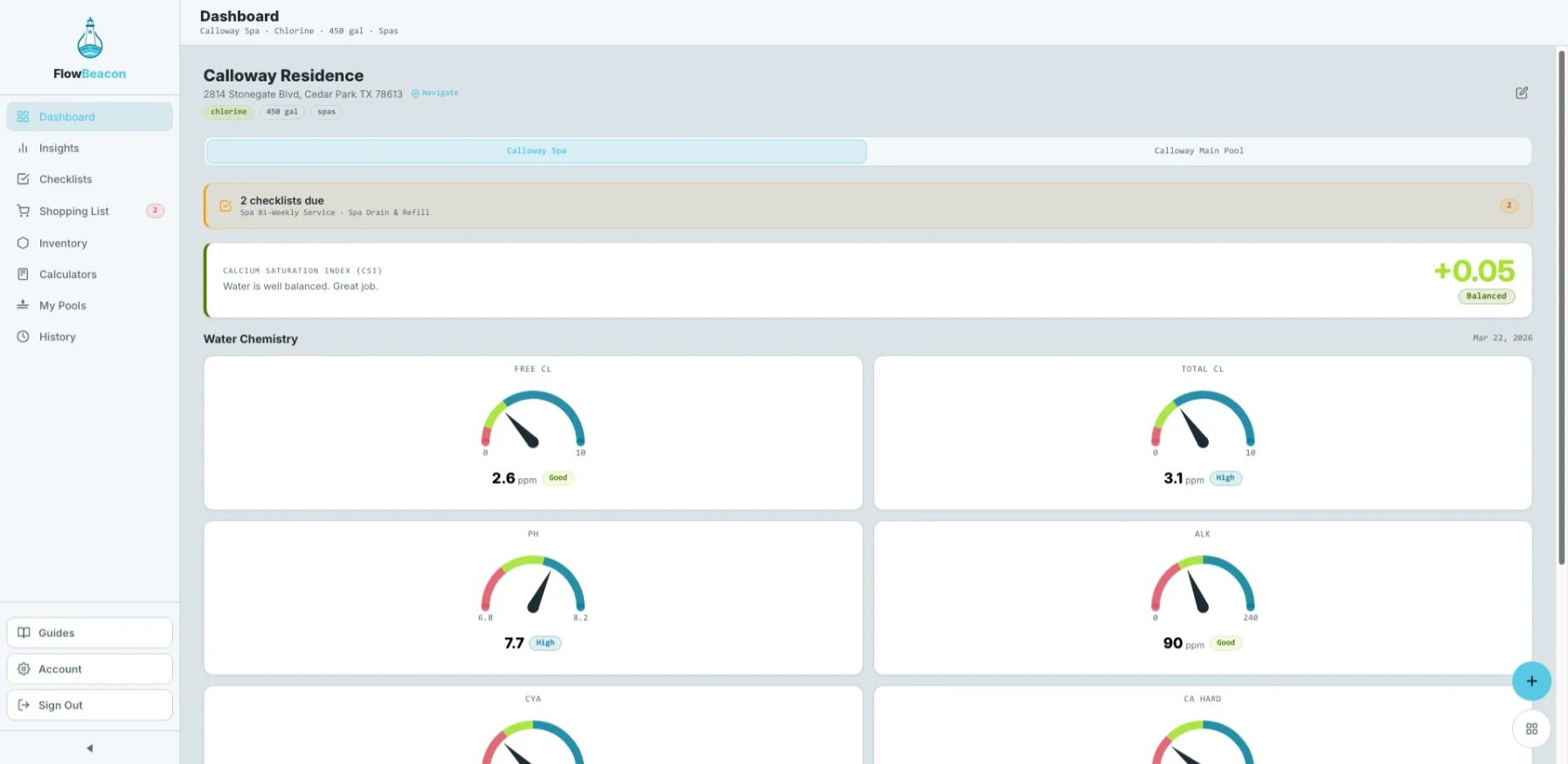
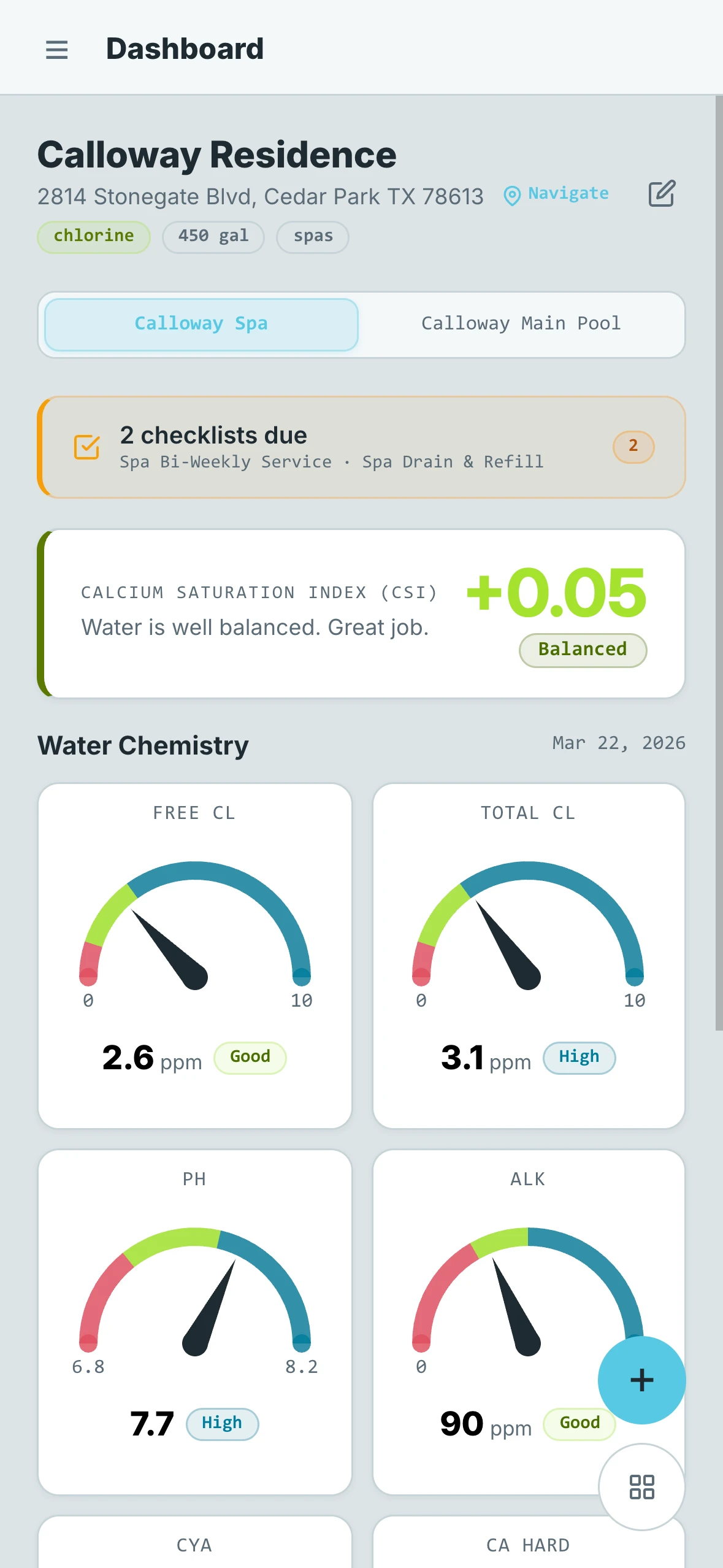
If a property has more than one body of water — such as a pool and a spa — you will see tabs at the top of the Dashboard that let you switch between them. Each body of water has its own set of readings and its own CSI card. The interface will look slightly different when multiple bodies of water are present, with the tab bar appearing just below the pool details.
Water Chemistry Gauges
The Water Chemistry section displays gauges for your key chemical readings — Free Chlorine, Total Chlorine, pH, Alkalinity, CYA, Calcium Hardness, and Temperature. Each gauge shows your current value and whether it falls in the good, low, or high range for that chemical. Temperature is included because it is one of the values used to calculate the CSI score.
You have two display styles to choose from: dial gauges or bar gauges. You can switch between them at any time in the Customize section under your Account settings.
How Chemistry Calculations Work
FlowBeacon is built to save you time by remembering your last known chemical values. You do not have to re-enter every reading every time you log a test.
When you record a new water test, any chemical you leave out will automatically pull in the most recent recorded value for that chemical. The Dashboard always reflects the most accurate picture of your pool using a mix of your new entries and any carried-over values.
Example: You arrive at a pool and log a full test with all readings entered. You then add shock and lower the pH with muriatic acid. For your next test, you only need to enter the new Free Chlorine and pH values. FlowBeacon carries over everything else from the first test — so your CSI score and all your gauges stay accurate without the extra work.