Chemical Adjustments
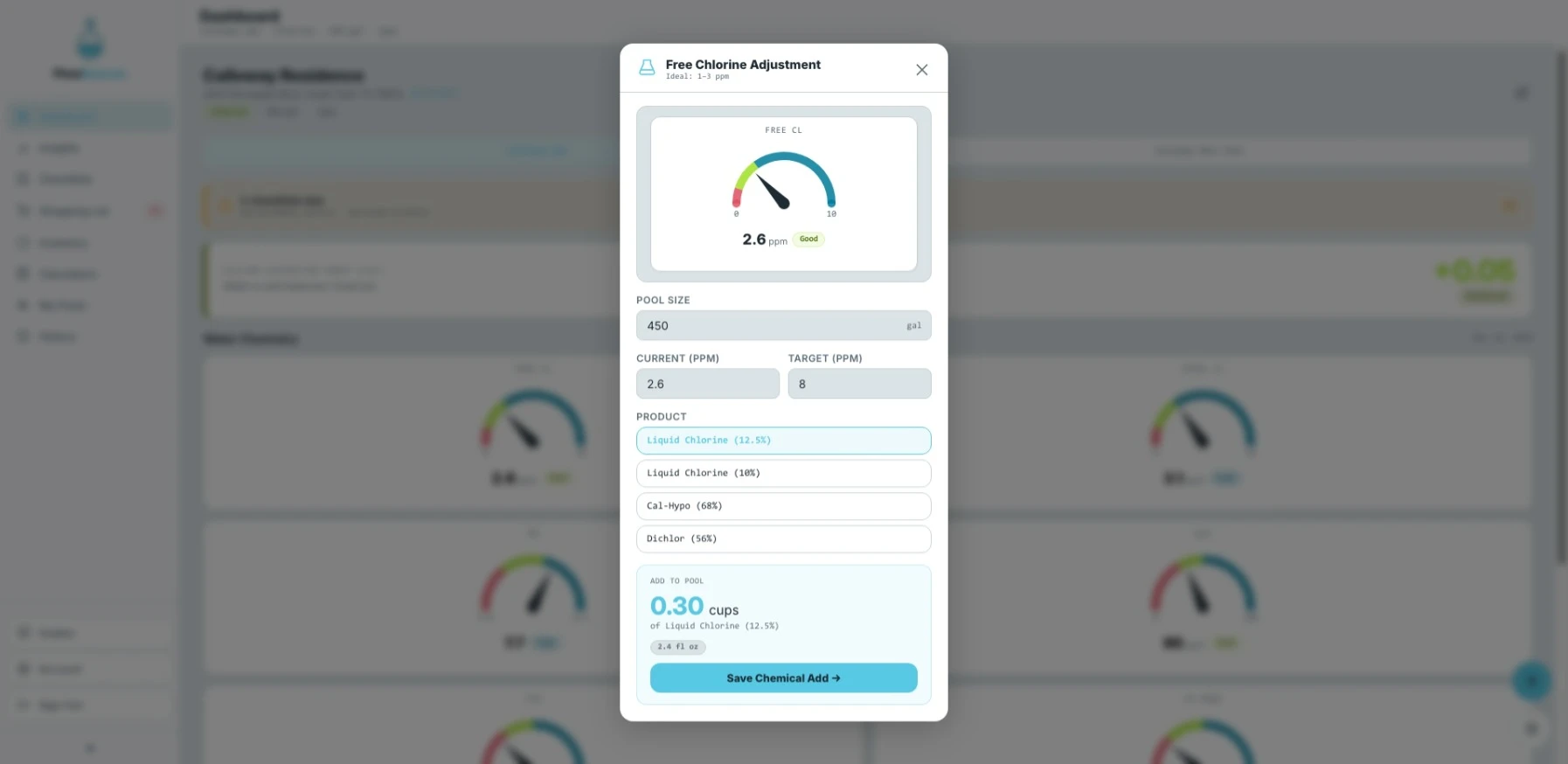
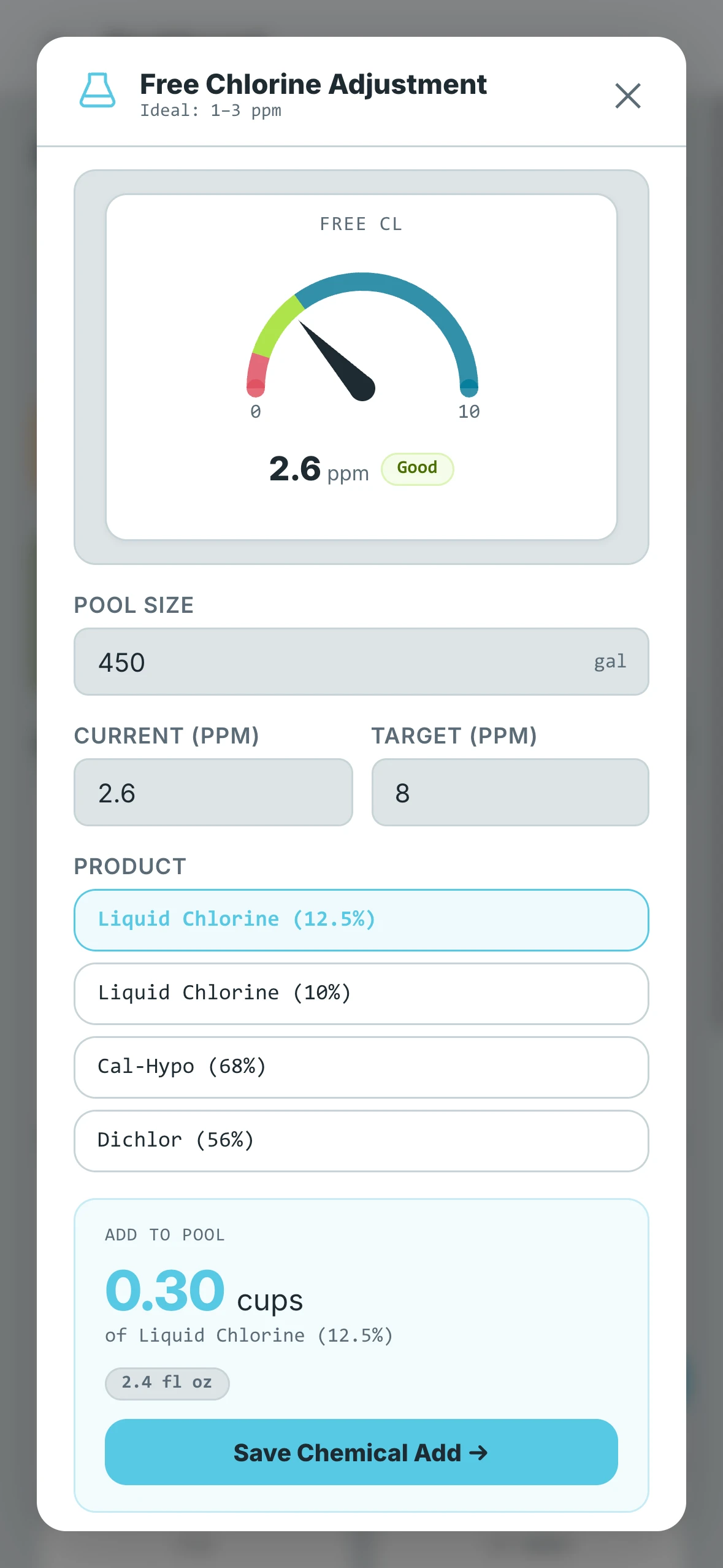
Tapping on any gauge on the Dashboard opens a chemical adjustment panel for that specific reading. This is where you can calculate exactly how much of a chemical to add to bring your pool into the ideal range — without leaving the app or doing the math yourself.
- Desktop
- Mobile
Ideal Range
At the top of the panel, FlowBeacon shows you the ideal range for the chemical you are adjusting. This range is based on industry standards by default. If you have set a global override in your account settings, that will be used instead. If you have configured a range override specifically for this pool, that takes priority over everything else.
Your Current Reading
Just below the ideal range, a gauge displays your current chemical reading pulled directly from your Dashboard. The gauge style matches whatever you have configured in your account settings — if you have bar gauges selected, you will see a bar gauge here, and the same goes for dial gauges. This keeps the experience consistent and means you always have your current reading in front of you while making adjustments, without needing to go back and forth to the Dashboard.
Pool Volume
To generate an accurate recommended adjustment, FlowBeacon needs to know the correct volume of your pool. If the volume shown is incorrect, you can adjust it directly within this panel for the purposes of the current calculation.
Getting this right matters — an inaccurate pool volume will produce an inaccurate chemical recommendation.
Editing the pool volume inside the chemical adjustment window only affects the current calculation. It does not update the volume saved in your pool settings. If your pool volume is permanently wrong, update it directly in the pool settings.
Current Reading & Target
Enter your current chemical reading and the target value you want to reach. FlowBeacon uses these two numbers along with your pool volume to calculate how much product you need to add.
Selecting a Chemical
Once your readings are entered, select which chemical or product you want to use to make the adjustment. The available options will be specific to the chemical you are adjusting, so you are only shown chemicals that are relevant to that particular reading.
Recommended Adjustment
At the bottom of the panel, FlowBeacon displays the recommended amount to add. The recommendation is shown in multiple units of measurement so you can work with whatever format is most convenient for you.
What Happens When You Save
Saving a chemical adjustment does two things automatically:
- Inventory — If you have that chemical tracked in your inventory, the recommended amount is subtracted from your current stock.
- History — A new entry is logged in the History tab recording what chemical was added, how much was added, and the exact time it was done.
This gives you a reliable record of every chemical addition without any extra steps.