Customize
Customize lets you tailor how FlowBeacon looks and behaves across different parts of the app. There are currently five customization sections.
Dashboard

Gauge Style
Choose how chemistry readings are displayed on the dashboard:
- Bar — Horizontal bar gauges
- Dial — Circular dial gauges
Checklist Reminders
Control whether checklist reminders appear on the dashboard:
- All — Show reminders for all checklists
- Repeatable Only — Show reminders only for repeatable checklists
- Off — Disable checklist reminders entirely
History

Entry Display
Choose how history entries appear by default:
- Collapsed — Entries are shown in a condensed view
- Expanded — Entries are shown fully expanded with all recorded details visible
Inventory
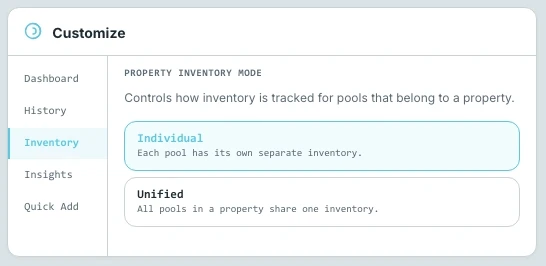
Property Inventory View
Control how inventory is displayed when viewing a property with multiple pools:
- Individualized — Each pool under the property maintains and displays its own separate inventory
- Unified — All pools under the property share a single combined inventory view
Insights

Default View
Choose which view opens by default when you navigate to the Insights screen:
- Snapshot — Opens to the snapshot overview
- Trends — Opens to the trends view
Quick Add
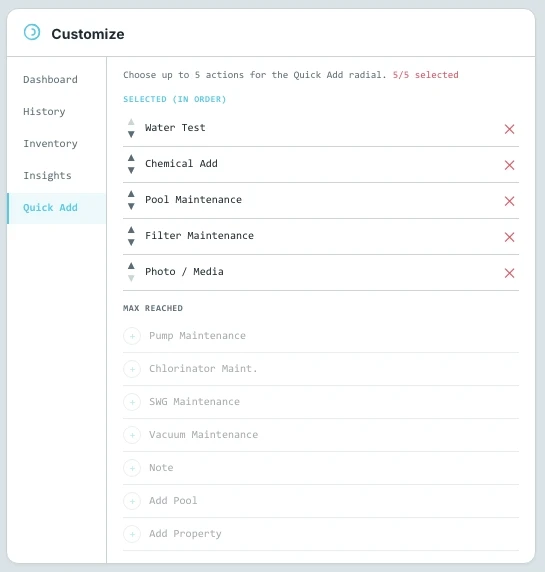
Configuring the Radial Menu
This is where you control which actions appear in the Quick Add radial menu. You can select up to five actions from any of the 10 forms available in the All Actions sidebar. Actions can also be reordered up or down to control how they are arranged in the menu.
Available actions:
- Filter Maintenance
- Pool Maintenance
- Pump Maintenance
- Chlorinator Maintenance
- SWG Maintenance
- Vacuum Maintenance
- Water Test
- Add Chemical
- Note
- Add Media
- Add Property